DevOps(Day-19) : Docker for DevOps

I like to explore the technology in DevOps area where I write blog about my learning each day on the tools that is mostly used in Industries for DevOps practices. You can go through my blogs and reach me out in LinkedIn for any suggestions.
Docker-Volume
Docker allows mounting the filesystems as a volume to the containers. These volumes preserve all the data of the container and the data is persisted even if the container is deleted.
The default path is /var/lib/docker/volumes/ on Linux.
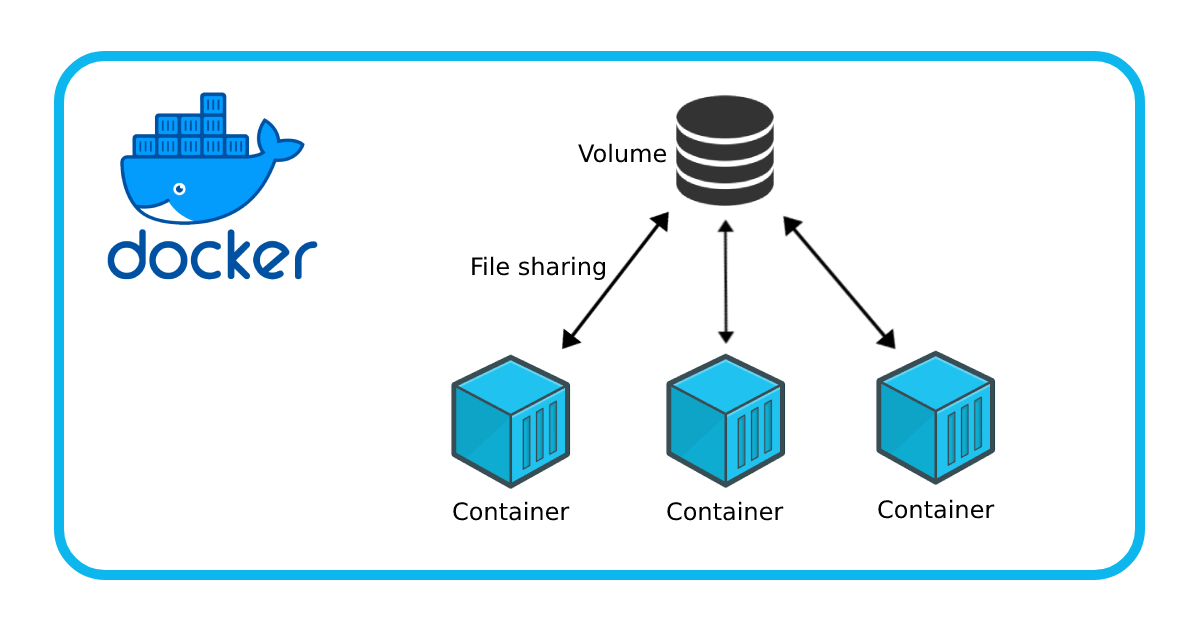
A volume can be mounted to multiple containers and it lies even if all containers are down. It can be removed only manually by the user.
Creating a Docker Volume
$docker volume create [volume_name]Listing a Docker Volume
$docker volume listMounting a volume.
docker run --mount source=[volume_name],destination=[path_in_container] [docker_image]Removing a Volume.
$docker volume rm [volume_name]Deleting all volumes at once.
$docker volume prune
Docker-Network
With Docker-Compose we create multiple containers, in that process, a space is created by Docker where those containers can communicate with each other and the host system. That space is known as Docker Network.
$docker network COMMAND
The COMMAND can be connected, create, disconnect, inspect, ls, prune, and rm.
Task - 1
Create a multi-container docker-compose file which will bring UP and bring DOWN containers in a single shot.
Use the
docker-compose upcommand with the-dflag to start a multi-container application in detached mode.
Use the
docker-compose scalecommand to increase or decrease the number of replicas for a specific service. You can also addreplicasin deployment file for auto-scaling.

Use the
docker-compose pscommand to view the status of all containers, anddocker-compose logsto view the logs of a specific service.
Use the
docker-compose downcommand to stop and remove all containers, networks, and volumes associated with the application
Task-2
Learn how to use Docker Volumes and Named Volumes to share files and directories between multiple containers.

Use the below command to create a volume.
$ docker volume create --name django-volume-final --opt device=/home/ubuntu/devops/volume/django-volume --opt o=bind --opt type=none django-volume-final


Create two or more containers that read and write data to the same volume using the
docker run --mountcommand.$ docker run -d --name django-notes-app -p 3000:3000 --mount source=django-volume-final,target=/app django-app:v1


Verify that the data is the same in all containers by using the docker exec command to run commands inside each container.
$ docker exec -it django-notes-app-V2 /bin/sh

Use the docker volume ls command to list all volumes and docker volume rm command to remove the volume when you're done.


Thanks for reading my article. Have a nice day.
You can follow me on LinkedIn for my daily updates:- linkedin.com/in/bandan-kumar-sahoo-131412203


